


Row-level security is meant to be the quiet guarantee at the heart of a Power BI report: the regional manager sees their region, the payroll officer sees payroll, and nobody sees anything else. Most teams set it up once, glance at the result and never think about it again. That habit is where the trouble starts.
Thank you for reading this post, don't forget to subscribe!The row-level security confidence gap is the distance between how sure an organisation feels that its data is protected and how much of that protection has actually been proven. The role exists. The report looks right to the person who built it. Everyone assumes the rest. Then a new starter opens a dashboard and finds salary data, or a client sees another client’s numbers, and the confidence turns out to have been borrowed.
This article explains where this gap comes from, the specific ways Power BI users end up seeing rows they should not, and a practical checklist to close the gap. It is written for analysts, report owners and managers who publish Power BI reports in Australia.
What Is Row-Level Security in Power BI?
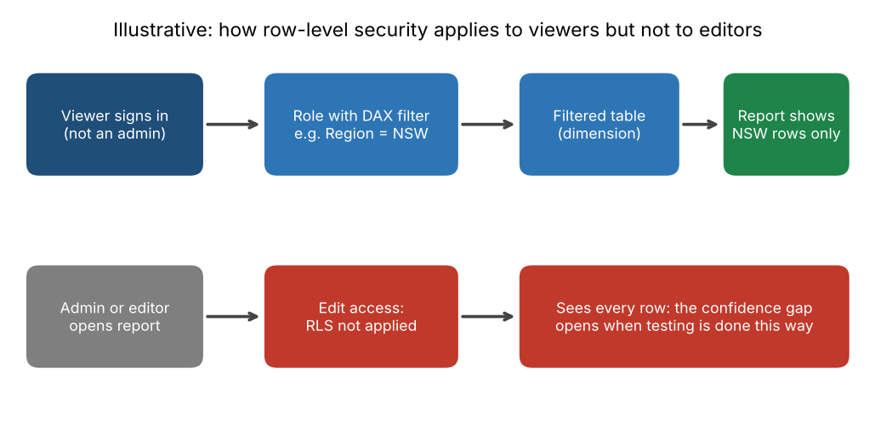
Row-level security, often shortened to RLS, restricts which rows of data a person can see in a Power BI semantic model. You create roles, write a DAX filter for each one (for example, [Region] = “NSW”), and then assign people or security groups to those roles in the Power BI service. When a member of that role opens a report, the filter is applied to everything they see, no matter which visual or page they use.
There are two common patterns. Static RLS hard-codes the rule into each role, which is simple but means one role per region, team or client. Dynamic RLS reads the signed-in user’s identity with a function such as USERPRINCIPALNAME() and matches it against a mapping table, so one role can serve hundreds of people. The approach follows the long-established idea of role-based access control, and Microsoft documents the details in its guide to row-level security in Power BI.
RLS is a strong tool. The problem is not the feature. The problem is how rarely it is tested the way a real viewer would experience it.
What Is the Row-Level Security Confidence Gap?
Think of it as two numbers. The first is how confident people feel that RLS is working. The second is how much evidence exists that it works: written access rules, tests by non-admin accounts, reviewed role membership and a record of what changed. In many Australian organisations, the first number is high and the second is close to zero.
That gap is dangerous because a security failure in Power BI is silent. Nothing crashes. No alert fires. A person simply sees a number they should not, and unless they speak up, nobody knows. It is a close cousin of the problems we describe in dashboard ownership and the KPI ownership gap: the work is done, but nobody is clearly responsible for proving it is right.
Why Power BI Users May See Data They Should Not Access
In our training sessions with Australian professionals, the same handful of causes keep coming up. None of them needs a hacker. Each is an ordinary slip.
- Editors are not restricted by row-level security. RLS restricts viewers. People with edit access to the semantic model, such as workspace Admins, Members and Contributors, are not filtered by the roles. If the report builder tests only from their own account, they see everything and conclude it works.
- Roles exist, but the wrong people are in them. A role with no members protects nothing, and a role assigned to a broad group can quietly give everyone the same view. Membership drifts as people change teams.
- Multiple roles add up. If a person belongs to more than one role, they see the combined rows of all of them, not the narrowest. A manager added to a second role “for convenience” may gain access nobody intended.
- The filter sits on the wrong table. Security filters flow along relationships in the direction of filtering. A filter on a fact table does not restrict a dimension table, so a slicer listing every customer or employee can still reveal names. Bi-directional relationships can also spread filters in ways nobody planned.
- Dynamic rules fail on small details. An email that is spelled or cased differently in the mapping table, a missing row for a new starter, or a catch-all entry added to “fix” a complaint can all open access too wide.
- Data leaves the protected model. Exports, duplicated reports and separate semantic models built from an extract do not carry the original roles with them. A well-secured model is little help if a copy sits in an open workspace.
- Row-level security does not hide columns. It filters rows. A sensitive column such as salary or a client identifier needs object-level security, or should be removed from the model altogether.
- Nobody owns the review. Roles are created at launch and never revisited, even as reports, teams and data sources change.
Warning Signs of a Row-Level Security Confidence Gap
Be honest about how many of these describe your environment:
- Row-level security was tested only by the person who built it, using an account with edit access.
- There is no written statement of who is supposed to see what.
- Role membership has not been reviewed since the report was published.
- Teams share files or screenshots because “the dashboard doesn’t show what I need”.
- Several copies of the same semantic model exist, and nobody is sure which one has security applied. The same confusion drives measure sprawl in Power BI.
- A user once mentioned seeing something odd, and the issue was fixed without finding the cause.
What Is at Stake When Row-Level Security Fails
The consequences range from awkward to serious. Staff can see remuneration or performance data. A customer sees a competitor’s pricing. A contractor sees internal margins. Even when nothing is misused, the discovery damages trust in the whole reporting environment, which is exactly what confidence in data depends on.
For organisations that handle personal information, there is a regulatory angle as well. The Office of the Australian Information Commissioner publishes guidance on the Privacy Act and data breach obligations, and unintended access to personal information can raise real questions. This article is general information, not legal advice, so involve your privacy or legal team when sensitive data is in scope. The security principle underneath is the familiar principle of least privilege: give people only the access they need.
How to Close the Row-Level Security Confidence Gap
The fix is mostly discipline, not technology. Work through these steps for every report that holds sensitive or restricted data:
- Write the access rule in plain English first. “Regional managers see their own region. Finance sees all regions. HR sees all staff data, nobody else does.” Get the data owner to agree before anyone touches DAX.
- Apply filters on the right tables. Put security on dimension tables, keep relationships single-direction unless there is a strong reason, and check that the filter reaches every table that could expose a name or identifier.
- Prefer dynamic RLS with groups. One role driven by a mapping table and managed through security groups is easier to audit than thirty static roles.
- Test as a viewer, not as yourself. Use “View as” in Power BI Desktop and “Test as role” in the Power BI service, then confirm with a genuine non-admin account. Do not rely on your own login.
- Build a small test matrix. List real users or personas, the role they should have, the rows they should see and the rows they actually see. Include edge cases: someone in two roles, someone in no role, a new starter and a person who has left.
- Keep edit access small. Limit Admin, Member and Contributor roles to the people who truly need them, separate development from production workspaces, and share with end users through an app or viewer access.
- Protect columns separately. Use object-level security or remove highly sensitive fields from the model. Do not rely on row filters to hide a column.
- Review on a schedule. Check role membership each quarter, re-test after any model change and use the Power BI activity log to see who is accessing what.
- Name an owner. One accountable person should be able to answer: who can see this report, and how do we know?
If you can answer that last question with evidence rather than reassurance, the row-level security confidence gap is closed.
Power BI Skills and Courses for Row-Level Security
RLS touches data modelling, DAX, relationships and governance, so it rewards proper training. These Power BI Course programs line up with the skills above:
- Power BI Beginner Course builds the foundation: connecting data, Power Query and your first interactive dashboard.
- Power BI Intermediate Course covers DAX, drill-through pages, and implementing row-level security and governance.
- Power BI Advanced Course goes deeper into complex DAX and optimising enterprise data models.
- PL-300 Microsoft Power BI Data Analyst prepares you for the Microsoft certification exam.
- DP-600T00 Microsoft Fabric Analytics Engineer suits those managing larger analytics solutions.
- Introduction to Microsoft Power Platform (PL-900) gives a wider view of the platform around Power BI.
You can compare them all on the Power BI courses page. If your report is not being used because people do not trust it, our article on dashboard adoption is a good companion read.
Row-Level Security Across Australian Cities
Every city has its own version of the problem. In Sydney, finance and professional services teams share reports across client and business units, so a single slip can cross a confidentiality line. Melbourne organisations in healthcare, retail and government often hold sensitive personal data alongside operational reporting.
In Brisbane, project and contractor reporting means external parties sometimes need a narrow view of internal numbers. Perth resources and logistics businesses split data by site and operator. Canberra agencies work under strict need-to-know expectations, and Adelaide organisations balance shared reporting with team-level privacy.
Training is available in-person in Sydney, Melbourne and Brisbane, and live online across Australia. See every option under Power BI course locations.
Frequently Asked Questions About Row-Level Security
What is row-level security in Power BI?
It is a feature that limits which rows of data each person can see, using roles with DAX filters that you assign to users or security groups in the Power BI service.
Does row-level security apply to workspace admins?
No. People with edit access to the semantic model, including workspace Admins, Members and Contributors, are not restricted by RLS roles. That is why testing from an admin account can give a false sense of safety.
Why can a user see data they should not?
Common causes are testing as an editor, wrong or overly broad role membership, users in more than one role, filters on the wrong table, mapping errors in dynamic rules, and copies of the data outside the secured model.
How do I test row-level security in Power BI?
Use “View as” in Power BI Desktop and “Test as role” in the Power BI service, then verify with a real non-admin account and a written test matrix covering normal and edge cases.
What is the difference between static and dynamic RLS?
Static roles hard-code the filter (for example, one role per region). Dynamic roles use the signed-in user’s identity and a mapping table, so a single role can serve many people and is easier to maintain.
Which Power BI course covers row-level security?
Our Power BI Intermediate Course includes implementing RLS and governance, and our PL-300 course prepares you for the Microsoft certification.
Final Thoughts: Replace Assumed Security With Proven Security
Row-level security rarely fails loudly. It fails quietly, in the space between “we set it up” and “we checked it as a real user”. Closing that space takes a written rule, a realistic test, a short review habit and one person who owns the answer.
If you want your team to build and verify secure Power BI reports with confidence, speak to a course advisor or call 1300 649 299. For more practical reading, visit the Power BI blog.