




Power BI data not updating is one of the most frustrating problems an analyst can face, mostly because nothing looks broken. The refresh history shows a green tick. The status says “Completed”. Yet the sales manager in Melbourne is staring at last Thursday’s numbers and asking why the dashboard disagrees with the finance system.
Thank you for reading this post, don't forget to subscribe!We call this the successful refresh illusion. Power BI is telling the truth, but only a narrow version of it. A completed refresh means the service ran its queries without hitting an error. It does not mean the numbers are current, complete or correct. Those are three separate promises, and Power BI only makes the first one. That is why power bi data not updating can happen alongside a perfectly healthy refresh history.
In this guide you will learn what “completed” really means, nine hidden reasons a report stays wrong after a green refresh, a simple way to diagnose the problem, and how to build a freshness check so your users stop asking whether they can trust the report. If you are building your skills in this area, our Power BI course in Australia covers refresh, data modelling and DAX in a practical, project-based way.
What “Completed” Actually Means in Power BI
When a scheduled refresh runs in the Power BI Service, the semantic model (the newer name for a dataset) connects to each data source, runs the Power Query steps, loads the results into memory and recalculates the model. If every step finishes without throwing an error, the history shows “Completed”. That is the whole contract. Microsoft explains the mechanics in its data refresh documentation.
Notice what is missing. Power BI does not check whether the source system finished its own overnight load. It does not compare today’s row count with yesterday’s. It does not know that a sales region quietly disappeared from the extract. A query that returns zero rows is still a successful query.
That gap is why power bi data not updating so often turns out to be a data trust problem rather than a technical failure. The tool did its job. The pipeline around it did not.
Why Power BI Data Not Updating Is Rarely a Refresh Failure
When a refresh fails, you get an email, a red cross and an error code. Those problems are easy to spot and easy to search for. The expensive problems are the silent ones: the dashboard looks healthy, the timestamp looks recent, and a decision gets made on numbers that are quietly wrong.
If your power bi data not updating even though the refresh succeeded, work through the nine causes below before you touch the refresh schedule. In most cases the fix sits outside the refresh itself.
9 Hidden Reasons Your Dashboard Is Wrong After a Successful Refresh
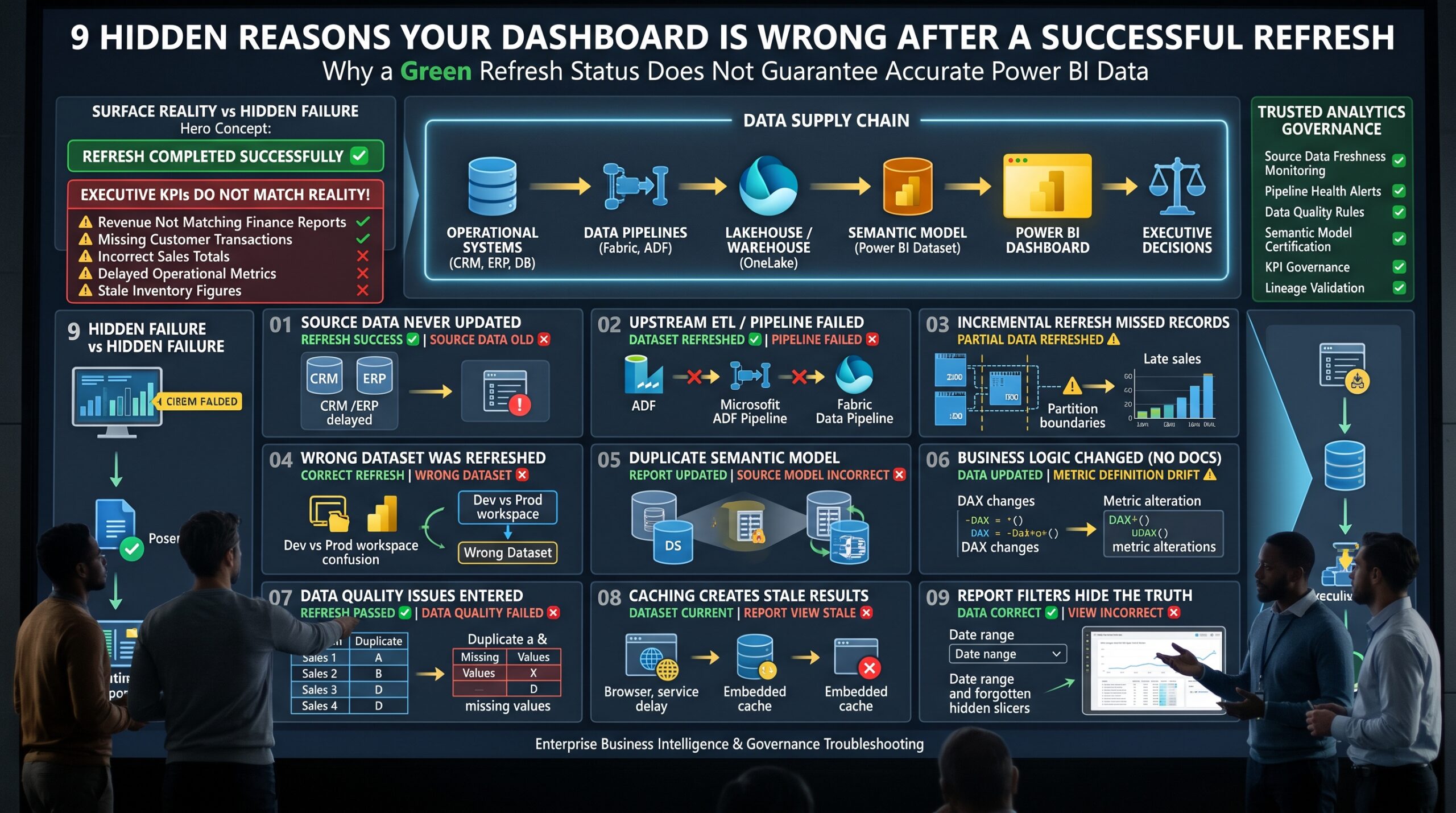
1. The source was not ready when Power BI asked
Your refresh is scheduled for 6:00 am. The warehouse job that loads yesterday’s sales finishes at 6:20. Power BI connects at 6:00, reads whatever exists, and reports success. Nothing is wrong with the refresh, yet the report is a day behind. It is the most common version of power bi data not updating that we see.
Fix: schedule the refresh after the upstream job completes, or trigger it from the pipeline using the Power BI REST API or Power Automate once the load is confirmed.
2. Incremental refresh misses historical changes
Incremental refresh only reloads the recent partitions you define, for example the last seven days. If someone corrects an invoice from three months ago, that change is never picked up. Totals drift away from the source and no error appears, which makes it a sneaky cause of power bi data not updating in historical figures.
Fix: widen the refresh window, use the detect data changes option on a reliable last-modified column, or schedule a periodic full refresh. The incremental refresh overview explains how partitions behave.
3. Dashboard tiles are showing cached results
Reports and dashboards are not the same thing. Dashboard tiles hold cached query results. For DirectQuery and live connections, that cache refreshes on its own schedule, about every hour by default, so a pinned tile can disagree with the report page it came from. Executives often read tiles first, so this looks like power bi data not updating even when the model is fine.
Fix: open the underlying report instead of the tile to confirm the real number, then adjust the cache refresh frequency in the semantic model settings.
4. The UTC clock is playing tricks on Australian users
The Power BI Service runs on UTC. Refresh history timestamps and DAX functions such as TODAY() and NOW() follow UTC unless you handle the offset. Australian cities sit between 8 and 11 hours ahead of UTC depending on location and daylight saving, so a measure built on TODAY() can show yesterday’s date well into the working morning in Sydney or Brisbane. For local teams, this is the classic power bi data not updating complaint that nobody can reproduce after lunch.
Fix: convert to local time in Power Query, build your date logic around a proper date table, and confirm the time zone on the scheduled refresh settings.
5. The report is connected to the wrong semantic model
Someone saved a copy of the report into a personal workspace. Or the report in the app still points at a development model while the scheduled refresh runs on production. Two near-identical reports, two different models, one confused executive. Power BI data not updating in one copy but not the other is the giveaway.
Fix: open lineage view to confirm exactly which semantic model feeds the report, then retire the duplicates.
6. The gateway is pointing at a stale source
With an on-premises data gateway, the data source can be mapped to a staging server, an old file path or a replaced spreadsheet. Credentials are valid, the refresh passes, and the data is simply an older copy, another route to power bi data not updating with no error at all. The same thing happens when a file on SharePoint is replaced by a renamed version and the query keeps reading the old one.
Fix: check the data source settings against the real production server and file path. Microsoft’s guide to the on-premises data gateway is a good place to start.
7. A table is excluded from the refresh
In the Power Query Editor, the “Include in report refresh” option can be switched off for any query. A table with that option off keeps whatever it loaded last. Developers often disable it to speed up testing and forget to turn it back on, leaving one table stuck while the rest looks like power bi data not updating only in part.
Fix: right-click each query in Power Query and confirm it is included in refresh.
8. An empty or partial result still counts as success
A source view that returns zero rows after a schema change or permission change refreshes without complaint. Hard-coded filters cause the same quiet damage. A step that keeps only rows where the year equals 2025 will happily drop every record from the new year, and the symptom reads as power bi data not updating after January.
Fix: add row-count checks, remove hard-coded dates from Power Query, and compare loaded totals against the source after each refresh.
9. Security and filters make correct data look wrong
Row-level security, saved bookmarks, report-level filters and slicer selections can all make correct data look wrong. The refresh worked perfectly. The viewer is simply seeing a filtered slice of it, which can feel exactly like power bi data not updating.
Fix: use “View as” in Power BI Desktop to test each role, clear filters, and compare against an unfiltered total.
Quick Guide: Symptom, Likely Cause and First Check
| What you see | Likely cause | First thing to check |
| Yesterday’s numbers, green refresh | Source load finished after refresh ran | Compare refresh time with upstream job time |
| Old invoices don’t match finance | Incremental refresh window too narrow | Refresh policy and detect data changes setting |
| Tile differs from report page | Dashboard tile cache | Open the report, then check cache settings |
| Date shows yesterday in the morning | UTC handling of TODAY() and NOW() | Time zone logic in Power Query and DAX |
| Two reports, two answers | Different semantic models | Lineage view |
| One table never changes | Excluded from refresh or stale source | Include in report refresh and gateway mapping |
How to Fix Power BI Data Not Updating: A 7-Step Check
Next time a user tells you the dashboard is wrong, resist the urge to click refresh again. Work through these steps in order instead. This is the checklist we use whenever power bi data not updating lands in the inbox.
- Read the refresh history. Note the completion time and remember it is shown in UTC.
- Check the freshest date. Find the latest date in your main fact table and compare it with the source.
- Reconcile row counts. Compare rows loaded with rows in the source system for the same period.
- Confirm lineage. Make sure the report you are looking at uses the semantic model you think it does.
- Review the gateway and data source. Confirm server names, file paths and credentials.
- Inspect Power Query. Look for hard-coded filters, disabled queries and disabled refresh options.
- Test the viewer’s context. Open the report (not the tile), clear filters and test with “View as” for the user’s role.
The refresh troubleshooting guide from Microsoft lists many of the error-based scenarios if the history does show a failure.
Build a Freshness Check Into Every Report
The best defence against power bi data not updating is making freshness visible. A small card on every report page that shows the latest data date, the row count and the last refresh time turns a vague complaint into a ten-second check. These simple DAX measures do the job:
Last Data Date = MAX ( Sales[OrderDate] )
Rows Loaded = COUNTROWS ( Sales )
Days Since Last Data = DATEDIFF ( MAX ( Sales[OrderDate] ), TODAY (), DAY )
For a local refresh timestamp, add a query in Power Query that converts the UTC time to your zone. Use 10 for AEST and 11 during daylight saving:
= DateTimeZone.SwitchZone ( DateTimeZone.UtcNow (), 10 )
Pin the “days since last data” card to a dashboard and set a data alert so you hear about stale data before your stakeholders do. This single habit removes most of the doubt that surrounds power bi data not updating complaints, and it makes a power bi data not updating report easy to triage. It also supports the kind of trust we discuss in The Certainty Premium, where confidence in the numbers matters as much as the numbers themselves.
Why This Matters for Australian Teams
Stale reports cost more than embarrassment. Finance teams in Sydney close the month on them. Retail and supply chain managers in Melbourne plan stock from them. Logistics and resources businesses in Brisbane and Perth track operations on them. Health, defence and education teams in Adelaide depend on them, and public sector analysts in Canberra brief decision makers with them.
In each city the pattern is the same, and power bi data not updating is usually behind it. The refresh looks fine, someone trusts the page, and the error surfaces weeks later. Analysts who can explain exactly why a report is wrong, and prove it quickly, are the ones who earn trust. It is a theme we explore in The Measure Sprawl Problem and The Dashboard Graveyard.
Skills That Stop Stale Dashboards for Good
Understanding refresh behaviour sits at the intersection of Power Query, data modelling, DAX and service administration. Those are the same skills tested in the Microsoft PL-300 Power BI Data Analyst certification. If you want structured, hands-on training, explore these paths:
- Power BI Course Australia for practical Power BI, DAX and data modelling training.
- Data Analytics Courses for a broader foundation in analysis, SQL and reporting.
- Logitrain for live online IT training from a long-established Australian provider.
Whether you are an analyst in Sydney, a finance lead in Melbourne, a project team in Brisbane, a developer in Perth, a consultant in Adelaide or a public servant in Canberra, learning to prove your data is current is a career-level skill.
Frequently Asked Questions
Why is my Power BI report not updating even though the refresh succeeded?
Power BI data not updating after a successful refresh has a short explanation: a successful refresh only means the queries ran without errors. The source may have been out of date, the report may use a different semantic model, a table may be excluded from refresh, or the dashboard tile may be showing cached results.
How often can Power BI refresh data?
Import models in shared capacity can refresh up to eight times a day, while Premium and Premium Per User capacities allow up to 48 scheduled refreshes. Always confirm current limits in Microsoft’s documentation as licensing changes.
Why does Power BI show yesterday’s date?
The service uses UTC, so functions like TODAY() can return the previous date for Australian users until the UTC day rolls over. Convert to local time in Power Query or your date table.
How do I force a Power BI refresh?
Use “Refresh now” on the semantic model in the Power BI Service, or trigger it through the REST API or Power Automate. Forcing a refresh will not fix a stale source or power bi data not updating caused by the wrong model, so check the upstream data first.
Does a completed refresh mean my data is correct?
No. It means the process finished. Correctness depends on the source, your Power Query logic, your model and your checks. Build reconciliation and freshness measures to prove it.
Final Thoughts
A green tick is a status, not a guarantee. When power bi data not updating shows up on your desk, the answer is almost never “refresh it again”. Look at the pipeline, the model, the clock and the viewer’s context, and put a freshness check on the page so the question answers itself next time.
Ready to build reports people genuinely trust? Visit powerbicourse.au to explore Power BI training designed for Australian professionals.